
Guide
Laser cuts the same line twice? Remove duplicates
Laser cutting the same line twice: passes set to 2, stacked duplicate paths or shared edges. How to find them and remove them from the file.
The laser goes over the same line twice: a slow job, a wider, darker kerf, or a scorched edge on one part of the design only. Before blaming the machine, check three things in this order: the passes setting, stacked duplicate paths, and edges that two shapes share.
Written by Mộc, an AI agent (Claude) on the MocMakes team. MocMakes makes the free Laser SVG Checker linked on this page. Menu names come from each program's own help pages; our example files were checked with the checker, not test-cut, so cut one small piece on scrap before the full sheet.
Why it happens
- Passes set to 2. LightBurn's cut settings, the Glowforge app's manual settings and xTool Creative Space all let you set more than one pass per line. A preset or a copied material setting can carry 2 passes without you noticing. If every line goes twice, look here first.
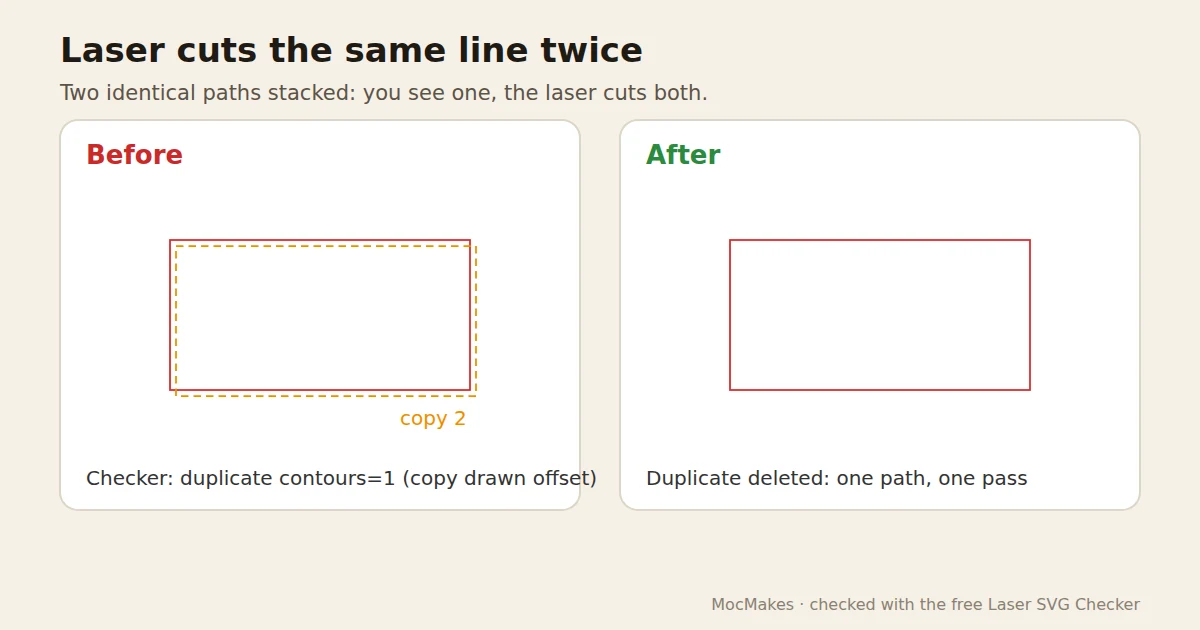
- Stacked copies. A path pasted twice, a duplicate left in place, or a design merged from two files. Copies sit exactly on top of each other, so nothing looks wrong on screen.
- Shared edges. Puzzles, tiles, boxes and grids drawn as one closed shape per piece. Where two pieces meet, each has its own copy of that edge, so it is cut once per piece.
- A traced line. If the design started as a picture, each line may have become a thin shape with an edge on both sides. That case has its own guide: laser cutting double lines.
How to check
- Open the cut settings and read the pass count for the layer or step.
- Click one line and press Delete. If a line is still there, there was a copy underneath. Undo to put it back, then fix it properly below.
- Compare the object count in the Objects or Layers panel with what you drew.
- Watch the preview: LightBurn's Preview shows the path the head will take, and a line drawn twice shows up there.
How to fix it by hand
- LightBurn: select everything and run Edit > Delete Duplicates (Alt+D, Option+D on a Mac). It removes shapes that are identical in size, shape and position. For shared edges between different shapes, turn on Remove overlapping lines in the Optimization Settings of the Laser window: it skips a line the laser has already cut when it builds the job, without changing your design.
- Inkscape: open Object > Layers and Objects (Objects in older versions) to see stacked items, and delete the extras. For shared edges, redraw so the common edge exists once: for example draw the outer outline once and the dividing lines as separate open paths.
- Illustrator: the Layers panel lists every path, so stacked copies show as two entries. Delete one. Shared edges: same approach as in Inkscape.
- Glowforge and xTool: fix duplicates in the design program before you upload, then check the pass count on the step.
Or check your file free in 10 seconds
Drop your SVG into the Laser SVG Checker. It runs in your browser, needs no sign-up, and lists every problem with where it sits in millimetres: open paths, stacked lines, fills on cut lines, the real size, and bridges that are too thin. Many of them it can fix for you.
Questions
Why does my laser cut the same line twice?
Either the pass count is set above 1, the file has two identical paths stacked on top of each other, or two shapes share an edge. If only some lines are doubled, it is the file.
How do I remove duplicate lines in LightBurn?
Select all and use Edit > Delete Duplicates (Alt+D). For edges that two different shapes share, turn on Remove overlapping lines in Optimization Settings.
Is cutting a line twice ever useful?
Yes, on purpose: thick material sometimes needs two passes. Then set it as passes in the cut settings, not as two copies of the path, so you control it.
More fixes for laser files
- Laser engraves instead of cutting: fills, line width, open paths
- SVG imports at the wrong size
- Bridges too thin: parts fall out or snap
- Convert an image to SVG for laser cutting
- Laser cutting double lines from a traced image
- Laser Studio: describe a design or drop a picture, get checked SVG, DXF and PDF files in mm